 Pepe
How to install plugins on a Minecraft server
Plugins add new features to your server: ranks, land claims, economy, minigames. They work on Paper, Purpur and Spigot. Plugins cannot be installed on Vanilla, Fabric or Forge.
You can check and change the server software in the Server software tab (how).
One-click installation
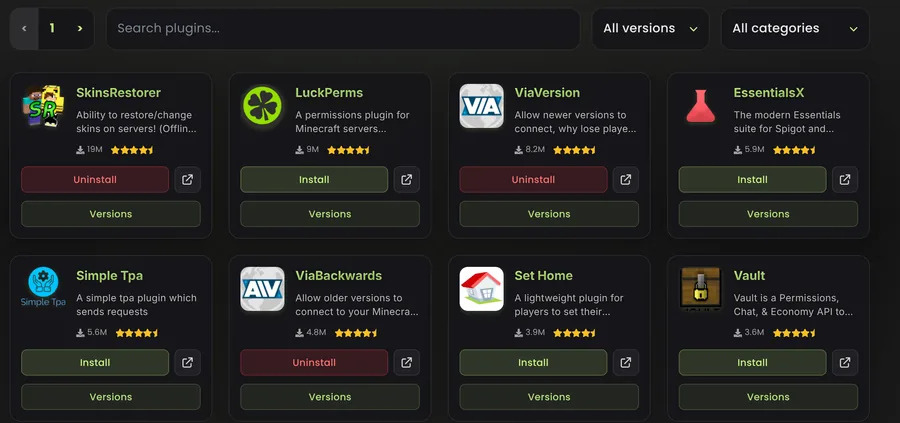
- In the panel open the Plugins tab.
- Type the name in the search field, e.g.
EssentialsX. - Click Install next to the plugin. You can choose an older version with the Versions button.
- Restart the server.
Installed plugins have a red Uninstall button.
A different plugin version
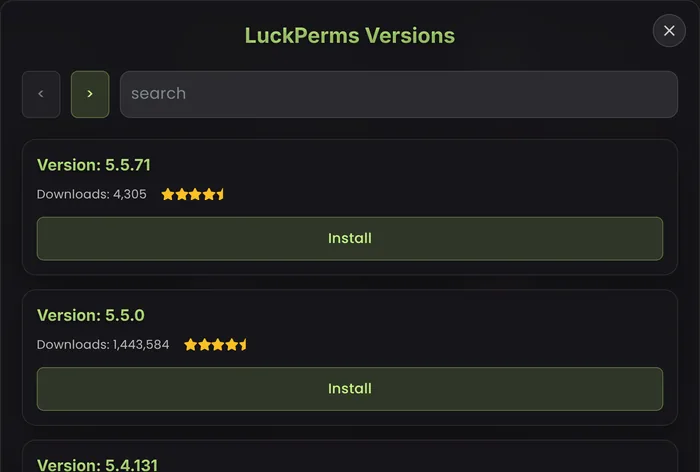
The Versions button opens a list of all releases of the plugin. It is useful when you run an older Minecraft version and the newest release of the plugin no longer supports it. Choose a version whose description on the plugin page lists your game version and click Install next to it.
Manual installation from a .jar file
- Download the plugin for your Minecraft version, preferably from Modrinth, Hangar or SpigotMC.
- Stop the server.
- In the Files tab open the
pluginsfolder and click Upload. - Choose the
.jarfile and start the server.
Configuring a plugin
On the first start a plugin creates its own folder in plugins, e.g. plugins/Essentials/config.yml. Edit the files while the server is stopped, or use the reload command of that specific plugin if it has one.
How to check whether a plugin works
After the server starts, type in the console:
pluginsYou will get a list of all plugins. A green name means the plugin is running. A red one means it failed to enable. If the plugin is not on the list at all, the server did not load it.
Common errors in the console
Scroll the console to the plugin name. Most often you will see one of these messages:
| Message | What it means | What to do |
|---|---|---|
Unknown/missing dependency plugins: [Vault] | the plugin needs another plugin | install the missing plugin, here Vault |
Unsupported API version 1.21 | the plugin is for a newer game version than the server | choose an older version of the plugin or update the server |
Ambiguous plugin name | the same plugin is uploaded twice | delete the older .jar file from plugins |
Invalid plugin.yml or does not contain plugin.yml | this is not a plugin, but e.g. a mod or a wrong file | download the right file, usually marked Paper or Bukkit |
Error occurred while enabling ... (Is it up to date?) | the plugin does not work with this server version | update the plugin |
Frequently asked questions
I uploaded a plugin and it does not work. What should I check?
Type plugins in the console and check the colour of the name. Then look for a message from the table above. Usually it is the wrong Minecraft version or a missing plugin that it depends on.
How do I remove a plugin?
In the Plugins tab click Uninstall. A plugin uploaded by hand is removed from the plugins folder in the Files tab. Its configuration folder stays behind. You can delete it if you do not plan to use that plugin again.
Can I use the /reload command?
Better not. /reload often breaks plugins and causes memory leaks. Always do a full server restart.
Which plugins are worth having from the start?
Most often: LuckPerms (ranks), EssentialsX (basic commands), CoreProtect (checking who broke what) and ViaVersion (joining from other game versions). More in the list of the best server plugins.