 Pepe
How to upload and edit Minecraft server files
All your server files are in the Files tab. The browser is enough for small changes. For big transfers SFTP is more convenient.
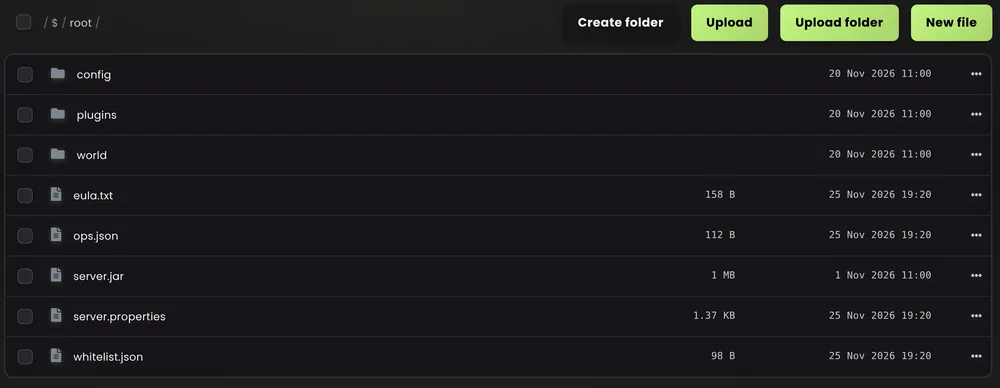
The most important files and folders
server.properties: the main server settings (what each one does),plugins: plugins (on Paper, Purpur and Spigot),mods: mods (on Forge, NeoForge and Fabric),world: the world, withworld_netherandworld_the_endnext to it on Paper,logs: the logs, includinglatest.logfrom the last start.
Uploading files
Click Upload to choose files, or Upload folder to upload a whole folder. You can also drag files from your computer straight onto the list.
Lots of small files upload much faster as one .zip archive. After uploading, click the three dots next to the archive and unpack it.
Editing a file
Click a file name, for example server.properties. The editor opens. When you are done, click Save content in the bottom right corner.
Other options
The three dots next to each file let you rename, move, download, compress and delete it. To select several files at once, tick the boxes on the left.
Frequently asked questions
I deleted an important file. Can I get it back?
Yes, if you have a backup. See how to restore a backup.
How do I download the whole world to my computer?
Compress the world folder into an archive (three dots next to the folder) and download the archive. For very big worlds SFTP is easier. Step by step: how to download your world.