 Pepe
How to enable two-factor authentication (2FA)
Two-factor authentication (2FA) means you need your password and a code from your phone to log in. Even if someone learns your password, they cannot get into your account or delete your server.
How to turn it on
- Install an authenticator app on your phone, for example Google Authenticator, Microsoft Authenticator or Aegis.
- In the panel go to Account.
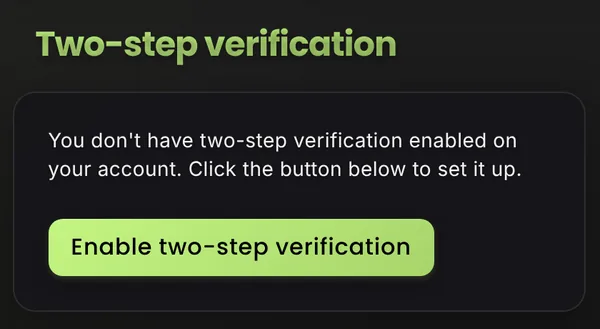
- Click Enable two-step verification.
- Scan the QR code with the app on your phone.
- Enter the 6-digit code from the app and your password, then confirm.
The panel then shows your backup codes. Save them somewhere safe, because they will not be shown again. Each code works once and lets you log in when you do not have your phone.
Other account settings
On the same page you can change your password (Change password) and your email address (Change email address).
Frequently asked questions
I lost my phone.
Log in with a backup code instead of the code from the app, then turn 2FA on again with your new phone. If you have no backup codes, contact us from the email address linked to your account.
The code is rejected.
Check that the time on your phone is set automatically. The codes depend on the clock.