 Pepe
How to add an extra port for a plugin
Some plugins need their own port: a web map (Dynmap, BlueMap), voice chat, GeyserMC for Bedrock or Votifier. You add ports in the Network tab. No port forwarding on a router is needed.
How to add a port
- Open the Network tab.
- Click Add port. A new address with a port number appears in the list.
- In the Notes field you can write what it is for, for example "voicechat".
- Enter that port number in the plugin's config and restart the server.
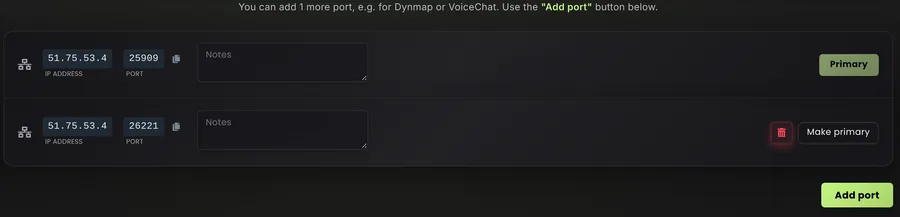
Above the list you can see how many more ports your plan allows.
The primary port
The port marked as Primary is the one Minecraft players connect to. Do not enter it in other plugins' configs, or the server will stop working. Only use the Make primary button if you know why you are changing it.
Tip: after changing the primary port, click Sync in the Subdomain tab so your subdomain points to the new port.
Where to enter the port in popular plugins
- Simple Voice Chat:
port=invoicechat-server.properties(guide), - GeyserMC:
port:in thebedrocksection ofconfig.yml(guide), - Dynmap:
webserver-port:inplugins/dynmap/configuration.txt, - BlueMap:
port:inplugins/BlueMap/webserver.conf.
You then open the Dynmap or BlueMap map in your browser at http://IP:port (web map guide).
Frequently asked questions
I cannot add another port.
Your plan has a port limit. Delete a port you do not use (the bin icon), or message us if you need more.